A Matter Profile is a ready-to-share document (PDF or Word) that summarizes a matter. A matter is a legal case or file that you follow in Matter Management. Use it when a manager, a board member or a finance colleague asks where a matter stands. They do not need a DiliTrust account to read it.
✋ Who can use it
- Any user who has access to Matter Management and to the All Matters list.
- You can only include matters that you are allowed to view.
✍ Generate a profile
- Go to the All Matters list.
- Tick the matter you want. To export several matters, tick them all. They must all have the same matter type. The Generate profile button appears in the toolbar.
- Click Generate profile. A window opens.
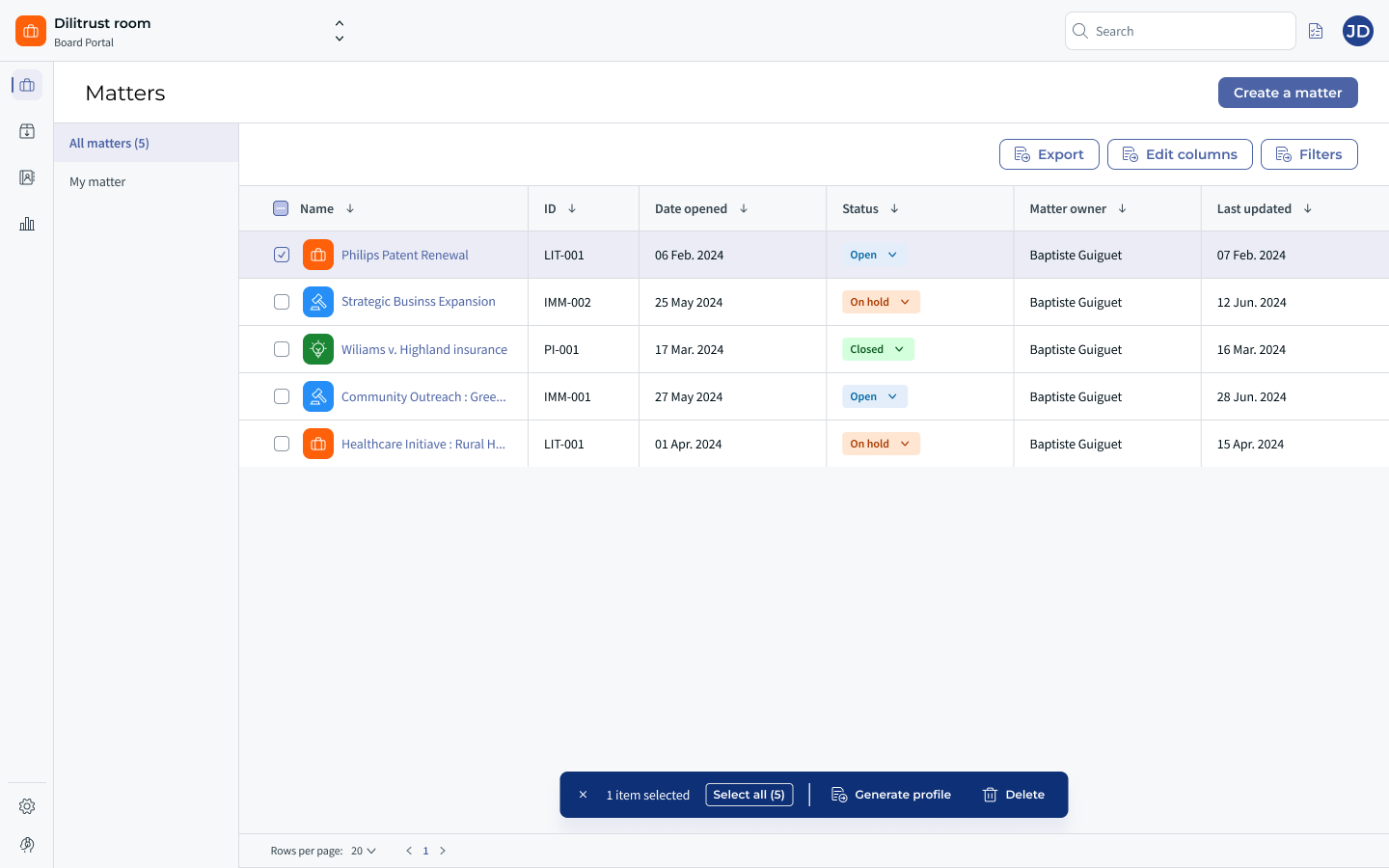
Step 1: choose what goes into the profile
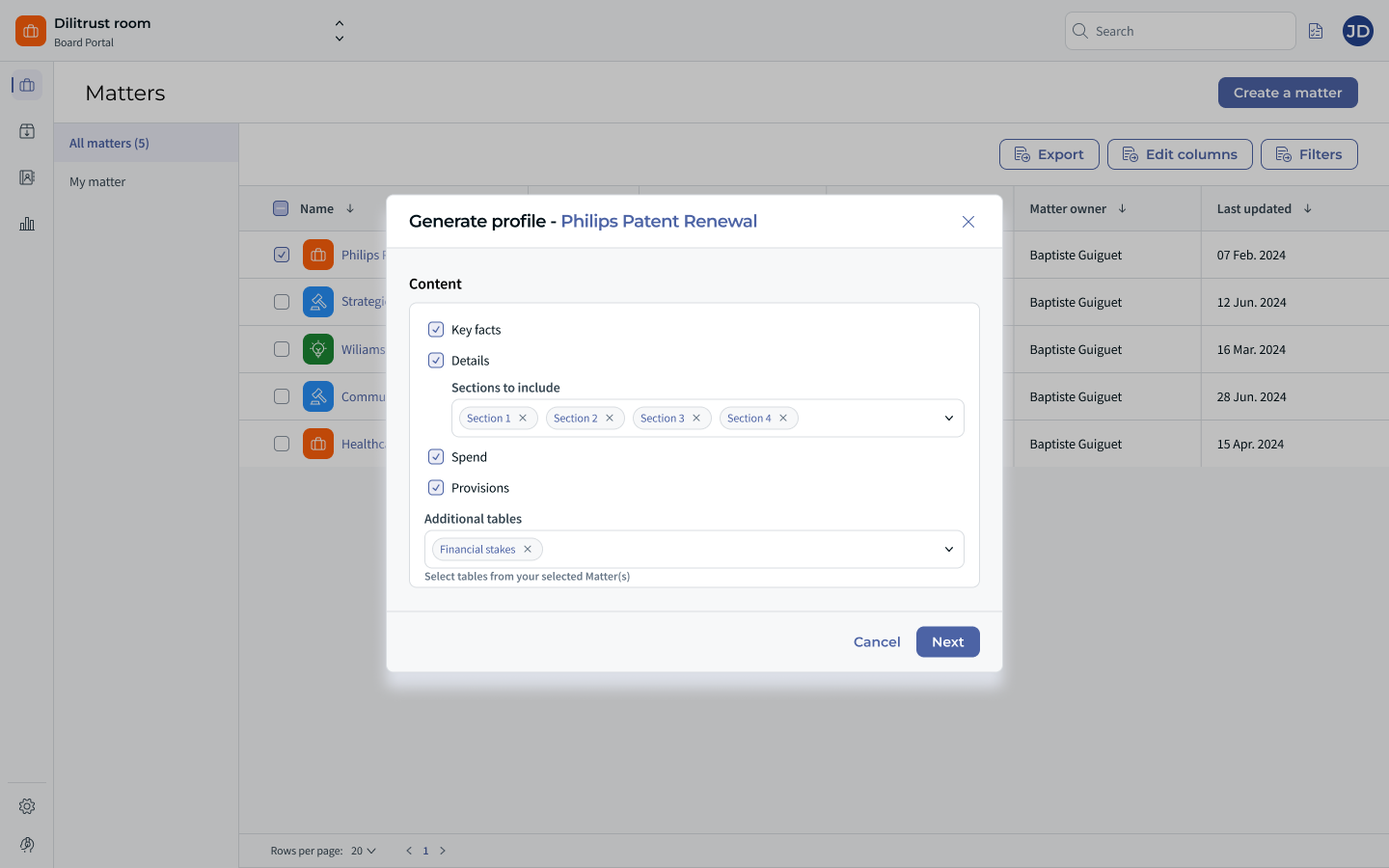
All sections are selected by default. Untick those you do not need:
- Key Facts
- Details: click to open it and choose individual sub-sections
- Spend: only shown if it is activated on the matter type
- Provisions: only shown if it is activated on the matter type
- Additional tables: choose them one by one
Step 2: choose the output options
- Hide empty content (on by default): leaves out sections and tables with no data. Turn it off to keep them, with the message "No data for this section".
- Export format: PDF (default) or Word (.docx). Choose Word if you want to edit the document before sharing it.
- Table display format: Table view (default) only exports the first 5 columns of each table. List view exports all columns as a vertical list. Tables with 5 columns or fewer are always exported as tables.
- Save as default settings: keeps your choices for next time. Only you are affected.
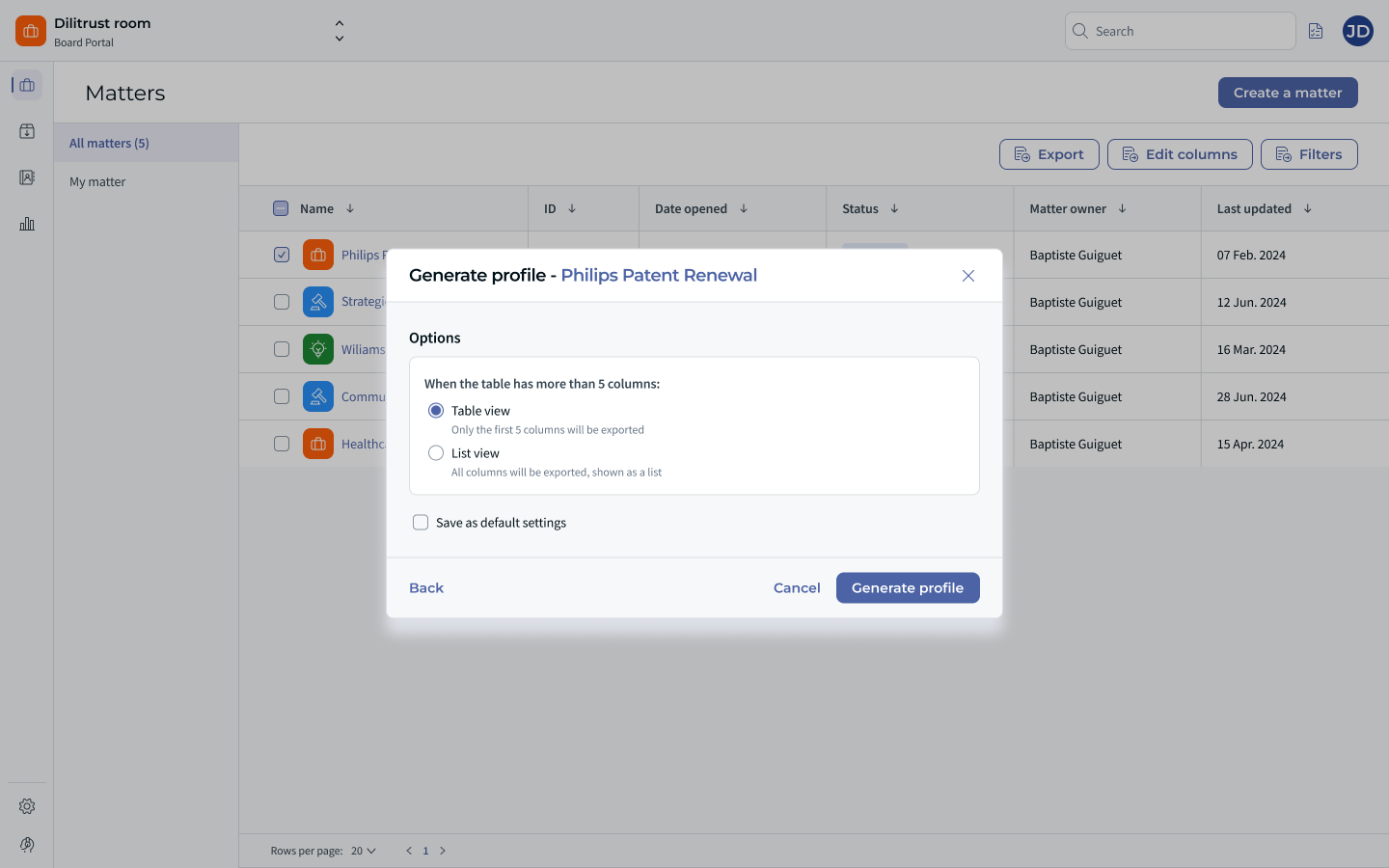
- Click Generate profile. The file downloads in your browser and a message confirms it is ready.
Click Back to return to Step 1 without losing your selection, or Cancel to close without generating anything.
Several matters at once
The steps are the same. You get one single file with all the profiles, one after the other, in the same order as the All Matters list. Each matter starts on a new page. Your choices apply to every matter.
✨ Tips
- For a large export, filter the All Matters list by matter type, then click Select all.
- A profile shows the matter at the moment you generate it. It does not update by itself. Generate it again when the matter changes.
⛔ Limitations
- All matters in one export must have the same matter type. Otherwise the Generate profile button is disabled. Generate one file per matter type.
- No email is sent. The file only downloads in your browser.
- The table display format applies to every table in the document. You cannot set it table by table.
❓ FAQ
Why is the Generate profile button greyed out?
Your selection probably mixes several matter types. Filter the list by matter type and select again.

Was this article helpful?
That’s Great!
Thank you for your feedback
Sorry! We couldn't be helpful
Thank you for your feedback
Feedback sent
We appreciate your effort and will try to fix the article