DiliTrust Matter Management now allows any internal collaborator to submit a legal or contract request simply by sending an email to a dedicated legal inbox — no DiliTrust account required. In-house counsel receive structured, trackable requests directly in Matter Management and can manage all related documents without leaving the platform.
✅ Introduction
Legal teams are often flooded with requests from colleagues via email, chat, or informal messages. With this feature, any employee in your organization can submit a legal request by email — and it automatically appears in Matter Management as a structured request. In-house counsel no longer need to manually re-enter information or chase attachments.
For contract requests in particular, attorneys can save email attachments directly into Matter Management (MM) or the Contract Lifecycle Management module (CLM), and use those documents in follow-up conversations — eliminating duplication and keeping the contract library clean and up to date.
✋ Prerequisites / Getting Started
- Your organization must have a dedicated legal inbox configured in DiliTrust Matter Management.
- Contributors (in-house counsel and legal team members) must have an active DiliTrust contributor account.
- Requesters (internal collaborators) do not need a DiliTrust account — they only need to send an email to the legal inbox.
Where to find your legal inbox address: an administrator can retrieve it in Configuration → General settings, where a dedicated section shows the address in read-only mode together with a copy-to-clipboard action. The address is generated automatically for your organisation, cannot be edited and stays the same over time, so it can safely be shared internally or added to your company email directory.
⭐ Step-by-Step Guide
For Requesters (Business Users)
- Send an email to your organization's dedicated legal inbox (provided by your legal team).
- Include a clear subject line describing your request (e.g., "Contract review – Supplier Agreement").
- Attach any relevant documents directly to the email.
- Your request will automatically appear in Matter Management for your legal team to process.
What happens when your email arrives
DiliTrust recognises your organisation from the inbox address and turns the email into a structured request:
- the email subject becomes the request title;
- the email body becomes the initial description;
- the sender address becomes the reporter — the person’s name when the address matches an existing DiliTrust user, otherwise the email address itself.
You then receive an acknowledgement email confirming that your request has been created.
For Contributors (Legal Team)
- Log in to DiliTrust and navigate to Matter Management.
- Open the request from All Requests. A request created by email opens as a full page with three tabs — Overview for the request details, Email thread for the conversation with the reporter, and Documents. The assignee and the reporter are shown at the top right, next to the action that creates a related matter.
- Open the Email thread tab to read the original message and every later reply in chronological order, each with its sender, date and attachments. Attachments can be downloaded straight from the thread.
- Answer the reporter from the reply box at the bottom of the thread and click Send. Your message is emailed to the reporter and kept in the thread, so the whole history stays in one place.
- Save the attachments you want to keep — either in the request or in Contracts — then reuse them when you reply.
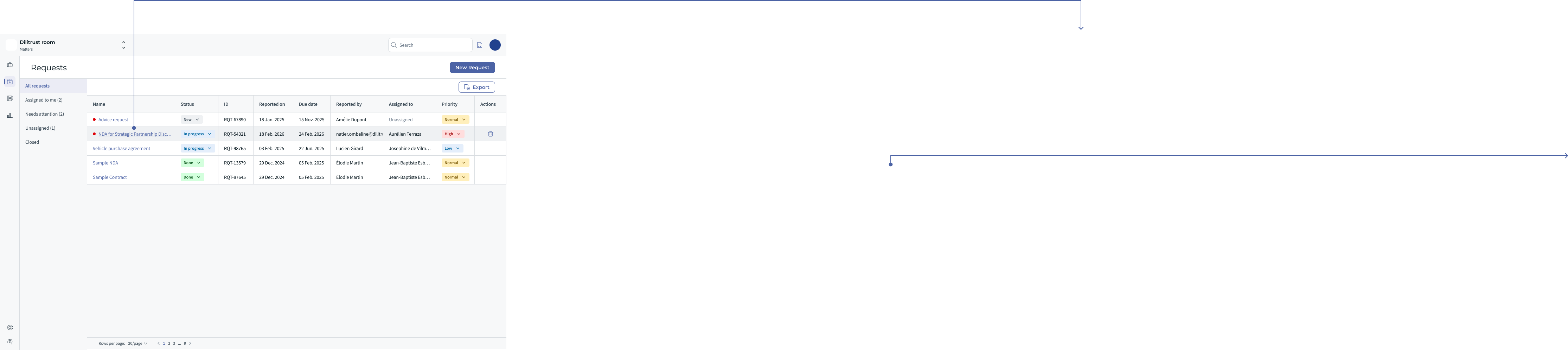
Saving attachments to the request or to Contracts
An attachment stays a simple conversation item until you decide to keep it. In the Email thread tab, open the message that carries the attachments and click Save. A window then asks where the files should go:
- This request — the files are stored in the request’s Documents tab and behave like ordinary request documents: anyone with access to the request can view and download them.
- Contracts — the files are stored in the Contracts (CLM) module.
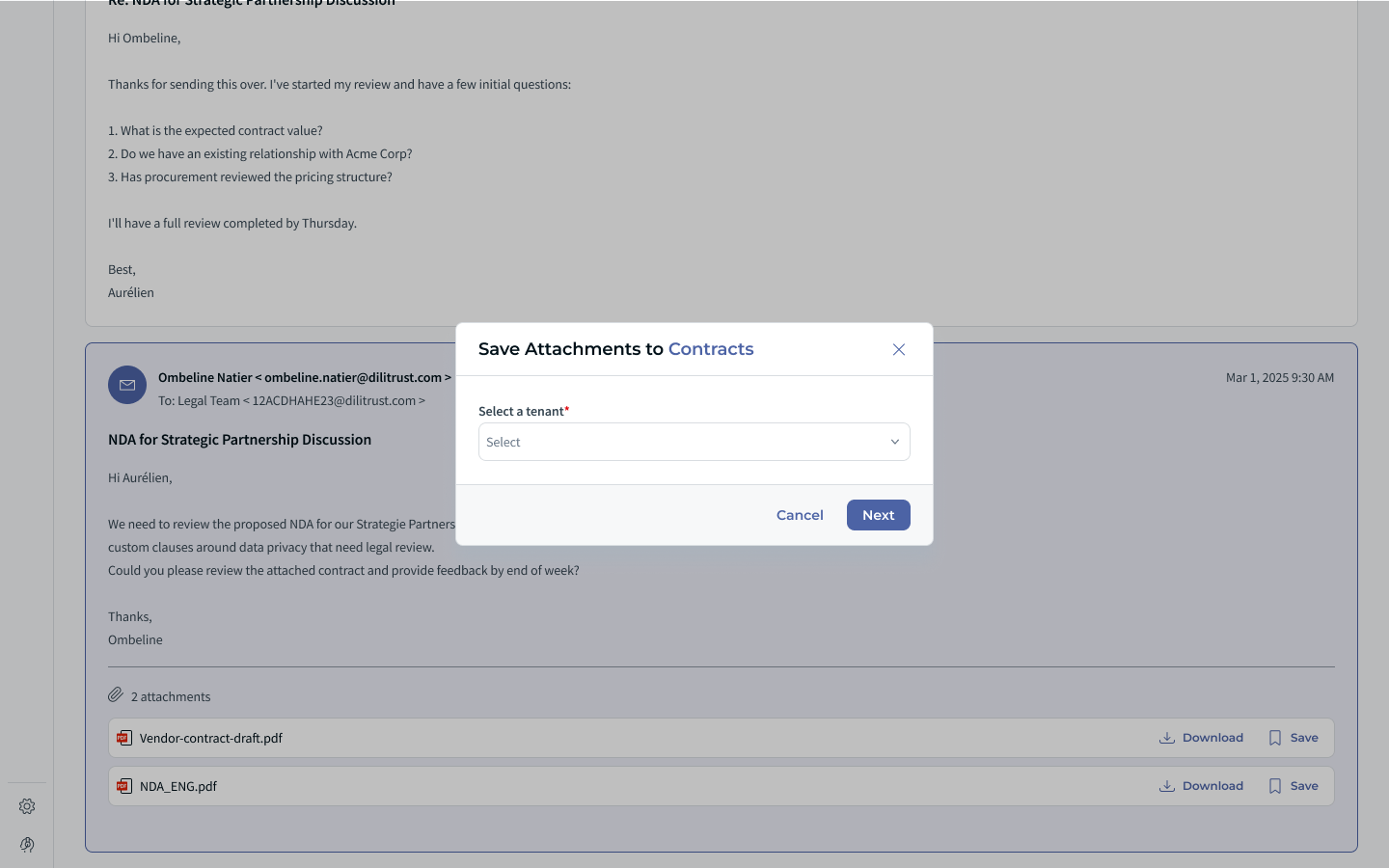
If you pick Contracts, one extra step defines exactly where the files are filed:
- If you have access to more than one Contracts tenant belonging to your organisation, select the tenant you want to browse and click Next.
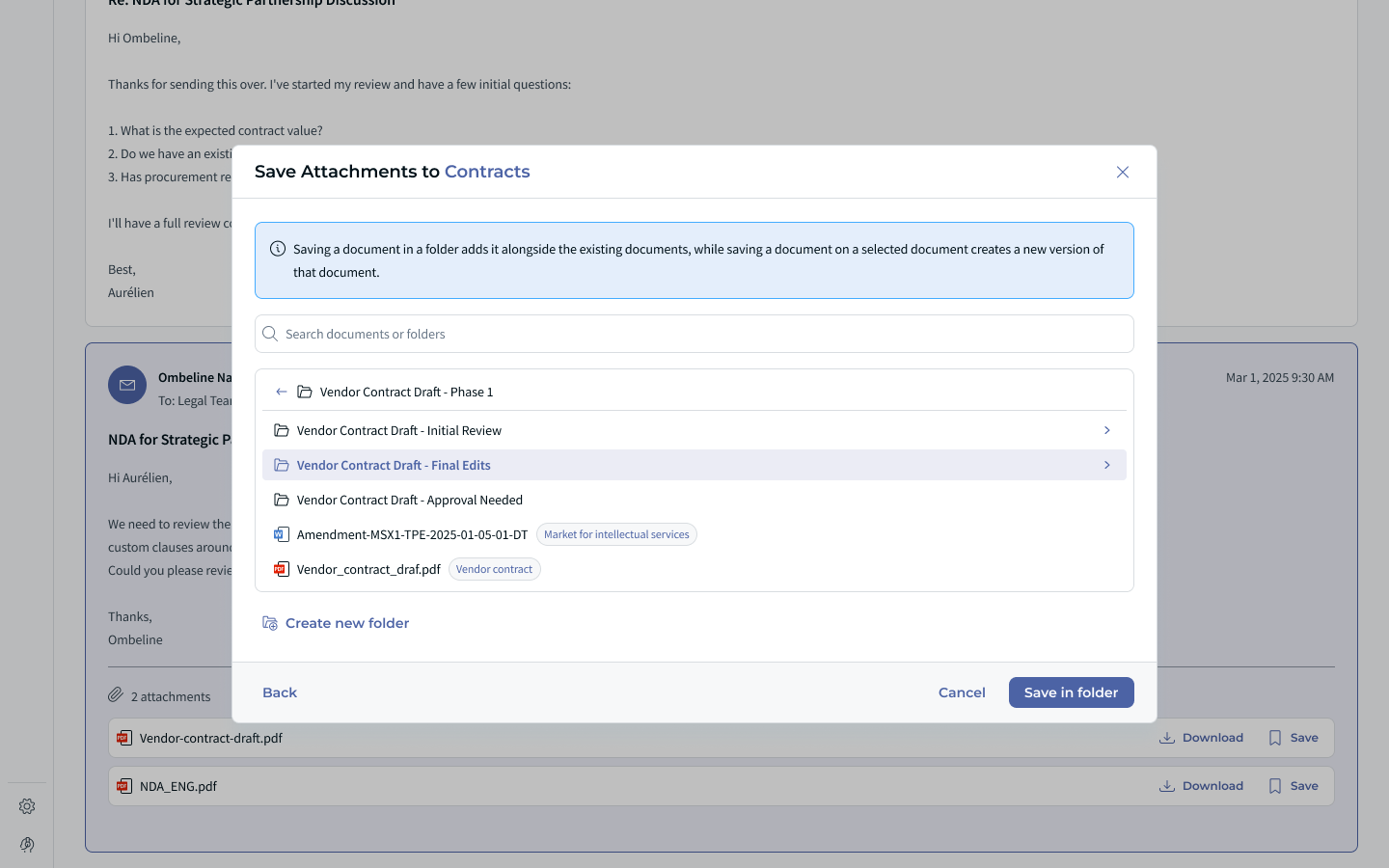
- Browse the folder structure, or use the document search, to reach the right location. Only the folders you are allowed to edit are shown.
- Select the destination folder — creating a new one if needed — and confirm with Save.
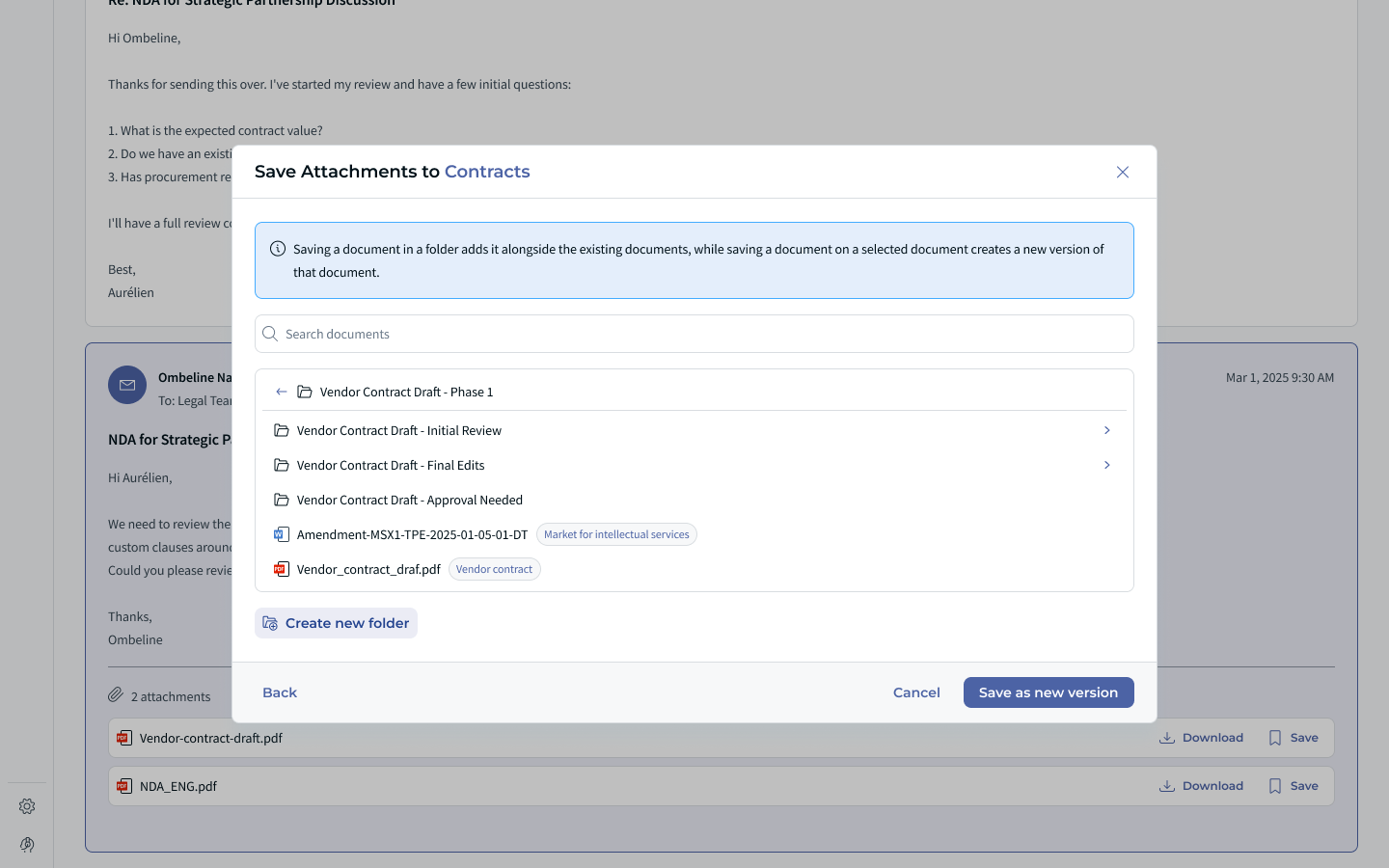
Saving a new version instead of a new document. Instead of choosing a folder, you can select an existing contract and choose Save as new version. Saving into a folder adds the file alongside the documents already there, while saving onto a selected document creates a new version of that document. A new version is only possible when the file is a .docx file, when the contract is neither in Draft nor Signed status, when it is not currently going through a validation or signature workflow, and when you have editing rights on it. In every other case the file can only be saved as a new document.
Working with the Documents tab
The Documents tab gathers everything you have kept for the request. It works like the Documents area of a matter, with two additional columns:
- ID — the identifier of the document;
- Source — the module where the document is actually stored, Matters or Contracts.
From this tab you can search documents by name or content, download them, and remove them from the request. Unlike in a matter, folders cannot be created inside a request.
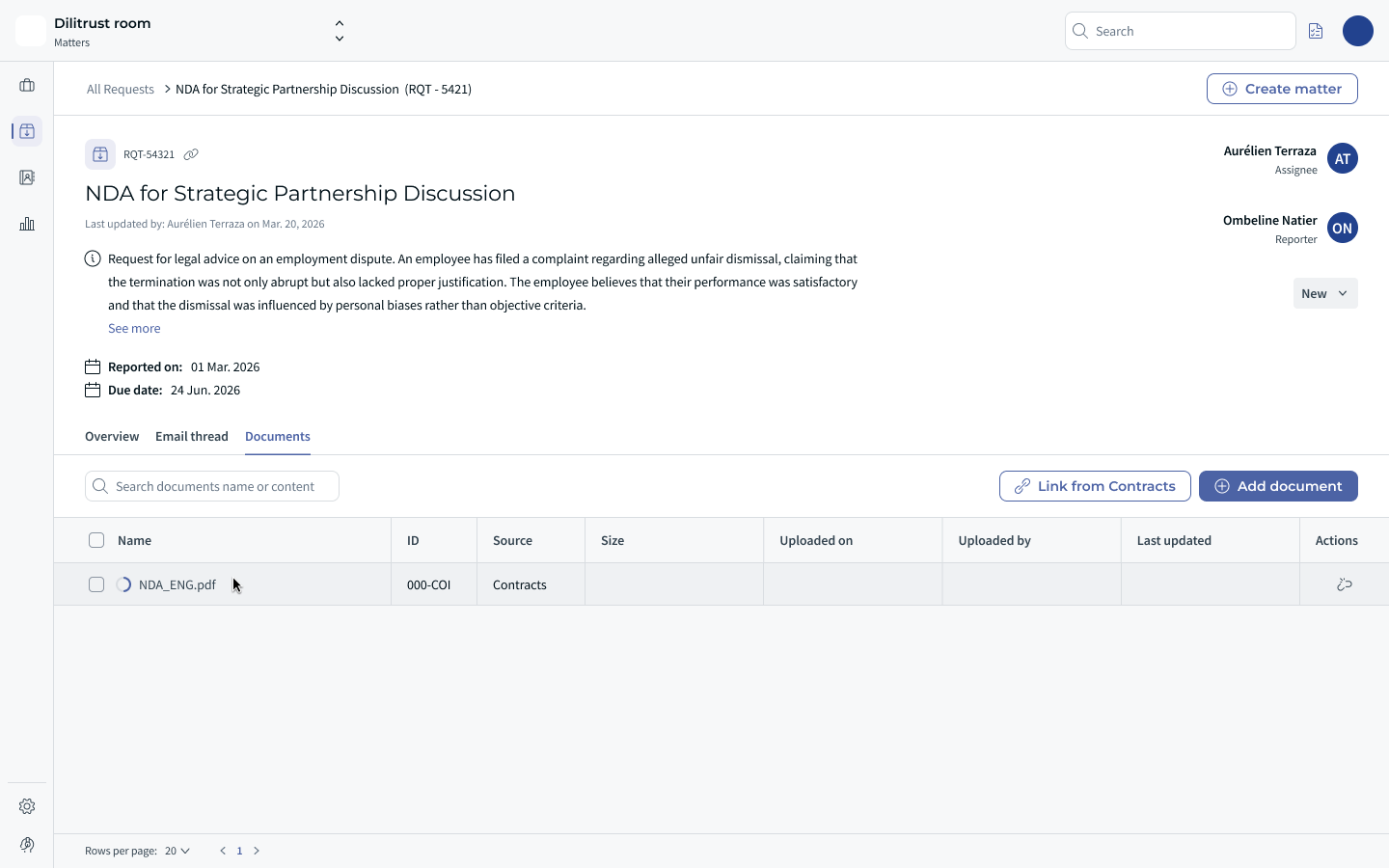
Linking an existing contract from Contracts
When a request concerns a contract that already exists in Contracts, link it instead of uploading a second copy:
- Open the Documents tab of the request and click Link from Contracts.
- If you have access to more than one Contracts tenant belonging to your organisation, select the tenant and click Next.
- Browse or search Contracts, select one or several documents, and confirm.
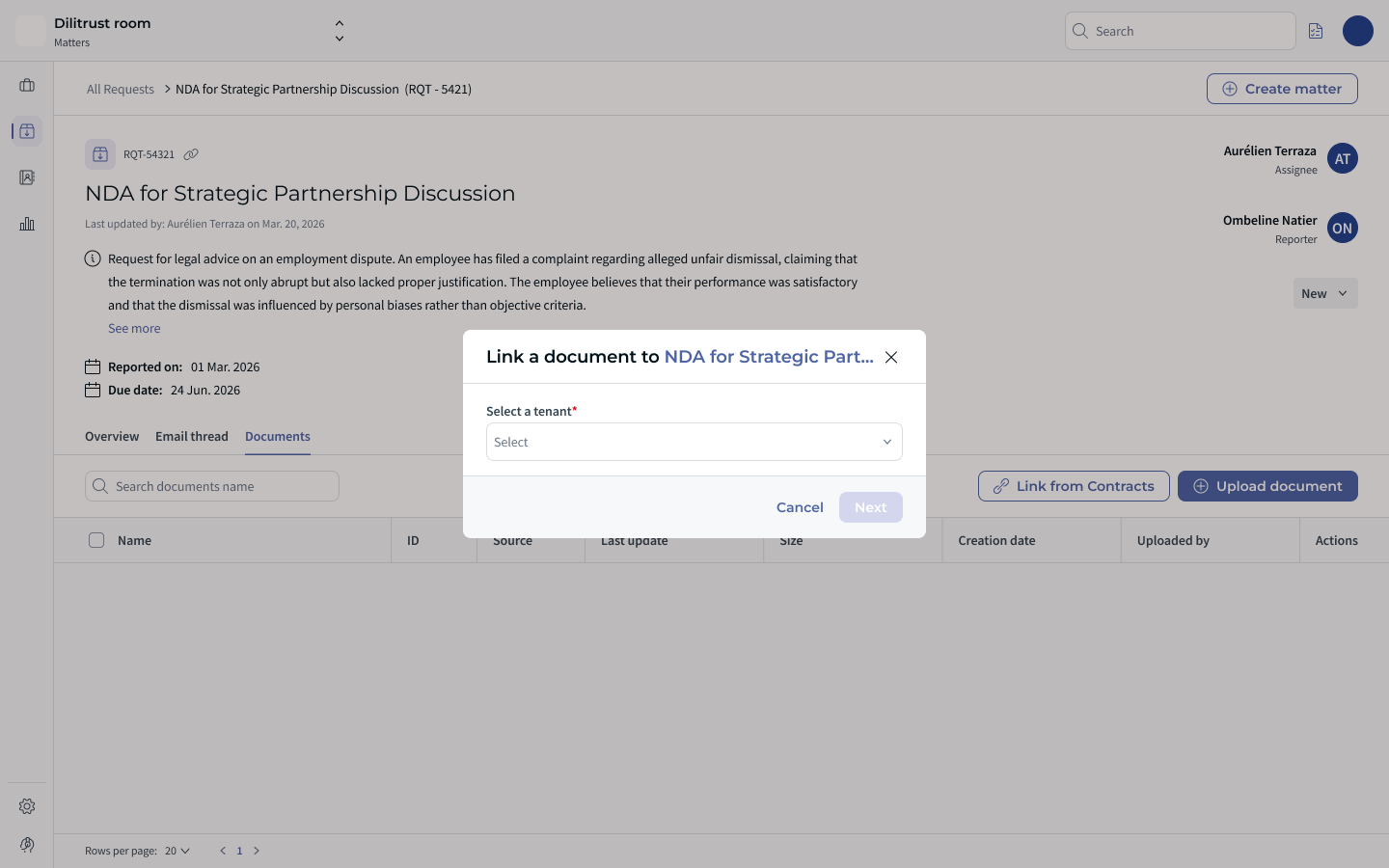
Linked contracts appear in the Documents tab as shortcuts with Source: Contracts, which makes them easy to tell apart from documents stored in the request. Only the documents and folders you are allowed to access are visible. Clicking a linked document opens it in Contracts, in its original context. Unlinking simply removes the shortcut from the request: the document itself is not deleted and stays in Contracts.
Attaching a document to your reply
When you answer the reporter from the Email thread tab, click the paperclip icon to attach a copy of:
- a document from this request — a document stored in the request itself (Source: Matters), provided you are allowed to download it;
- a document from your computer.
The files are sent with the email and remain visible in the conversation history.
How documents flow when you create a matter from a request
An attachment shared in the e-mail thread is only a communication item until you explicitly save it. Where you save it determines whether it will appear in a matter created from the request:
- Documents saved to the request (they appear in the request's Documents tab) are automatically copied into the matter as matter documents when you create a matter from that request.
- Documents saved to CLM from the request are not copied and will not appear in the matter created from the request. The CLM link is available from the request only.
Tip: if you want a document to be available inside the matter, make sure it is saved as a Request Document (in the request's Documents tab) before creating the matter.
✨ Tips & Best Practices
- Communicate the inbox address: Share your legal inbox email with all internal teams so they know exactly where to send requests.
- Standardize email subjects: Encourage requesters to use clear subject lines to make triage faster.
- Save to the request for matter work: If a document needs to be worked on within a matter, save it as a Request Document before creating the matter so it carries over automatically.
- Save contracts to CLM for a single source of truth: For contract lifecycle work, saving to CLM keeps the contract library clean — just remember CLM documents are not copied into matters.
- Use the reply function: Communicate with the requester directly from within the request to keep the full conversation history in one place.
❌ Limitations & Known Constraints
- Only contributors (legal team members with a DiliTrust account) can process and respond to requests.
- Tasks are not automatically created from emailed requests — task creation remains manual.
- The dedicated legal inbox must be configured by your DiliTrust administrator before this feature can be used.
- Only documents saved to the request are copied into a matter created from that request. Documents saved to CLM are not copied and will not be visible in the matter.
- The CLM link currently works from Request → CLM only, not from Matters. A direct Matters ↔ CLM link is planned for a future release.
- Folders cannot be created inside a request’s Documents tab.
- Only the Contracts tenants belonging to your own organisation are offered, and only the folders you are allowed to edit can be selected. Nothing is shared between organisations, even if you have access to several of them.
- Saving an attachment as a new version of an existing contract requires a .docx file, a contract that is neither in Draft nor Signed status, that is not in a validation or signature workflow, and on which you have editing rights. Otherwise the file can only be saved as a new document.
- A document stored in Contracts only appears in the request’s Documents tab if you have access to it in Contracts; downloading it also requires download rights in Contracts.
- The option to save attachments to Contracts is hidden if you have no access to a Contracts tenant belonging to your organisation.
- If an email arrives with an empty subject, the request is created with the title "No subject".
- Attachments that exceed the system limits may be rejected, and the sender may be notified.
- If your organisation’s legal inbox is deactivated, the address still exists but senders receive an email explaining that it is disabled.
❓ FAQ
Do requesters need a DiliTrust account?
No. Any internal collaborator can submit a request by simply sending an email to the legal inbox. No DiliTrust login is required.
Where do I find requests submitted by email?
Requests appear directly in Matter Management, in your request inbox.
Can I attach files when replying to a requester?
Yes. When interacting with a requester from within the request, you can attach files to your reply.
Can I save email attachments to both MM and CLM?
Yes. When you open an attachment from an email-based request, you can choose to save it either in Matter Management or directly in CLM.
When I create a matter from a request, will its documents appear in the matter?
It depends on where the document was saved. Documents saved to the request (in its Documents tab) are automatically copied into the matter. Documents saved to CLM are not copied and will not appear in the matter — so save a document to the request itself if you need it inside the matter.
Why can't I see a CLM document inside the matter?
The CLM link is currently available from the request only, not from matters. This is a known technical limitation. A direct link between Matters and CLM is planned for a future release. In the meantime, save the document to the request before creating the matter, or add it to the matter's Documents tab manually.
Where can I find my organisation’s legal inbox address?
An administrator can retrieve it in Configuration → General settings, in a read-only section that includes a copy-to-clipboard action. The address is generated automatically and does not change over time.
What happens if an email is sent without a subject?
The request is still created, with the title "No subject". You can rename it afterwards.
Can I link a contract that already exists in Contracts to a request?
Yes. In the request’s Documents tab, click Link from Contracts and select one or several documents. They appear as shortcuts with Source: Contracts, so nothing is duplicated.
Does unlinking a Contracts document delete it?
No. Unlinking only removes the shortcut from the request. The document itself stays in Contracts.
Why don’t I see the option to save attachments to Contracts?
That option only appears if you have access to a Contracts tenant belonging to your organisation. If you do not, ask your DiliTrust administrator.
Can I save an attachment as a new version of an existing contract?
Yes, when the file is a .docx file and the contract you select is neither in Draft nor Signed status, is not in a validation or signature workflow, and you have editing rights on it. Otherwise the file can only be saved as a new document.
Was this article helpful?
That’s Great!
Thank you for your feedback
Sorry! We couldn't be helpful
Thank you for your feedback
Feedback sent
We appreciate your effort and will try to fix the article