A detailed invoice lets you record an outside counsel invoice line by line, inside a matter. You don’t just enter a single total.
For each billed line, you can record:
- who did the work,
- how long it took,
- at what rate,
- how the work is classified.
The result: you know exactly what each cost is for. You can finally answer “who worked on what, and at what cost”.
⭐ What a detailed invoice is
A detailed invoice is a new type of invoice in the Spend area of a matter.
You fill it in in a single window called “Submit detailed invoice – [matter name]”. The window has four sections. You can move between them freely:
- Invoice header: who sent the invoice, its number, its dates and a short description.
- Fees: the billable work. For each line: date, timekeeper, hours, rate, an optional discount and the classification codes you want.
- Expenses: out-of-pocket costs (also called disbursements). They are kept separate from fees. Each line has its own expense code, quantity and unit cost.
- Extra information: additional details saved with the invoice.
What are UTBMS codes?
UTBMS (Uniform Task-Based Management System) is the industry-standard coding system for classifying legal work on invoices. There are three kinds of codes:
- Task code: which phase of the matter the work belongs to. Example: L310 — Written Discovery.
- Activity code: what type of action was done. Example: A103 — Draft / Revise.
- Expense code: what type of cost was incurred. Example: E109 — Local Travel.
These codes are only labels. They never change an amount or a rate.
Don’t confuse “task code” and “Task”
- A task code on an invoice line is a billing classification code.
- A Task in Matters is a to-do item on your matter.
The two are not related.
✅ Before you start
E-billing must be enabled for your organization
- Detailed invoices depend on an organization-level setting called E-billing.
- It cannot be switched on for a single user or a single matter.
What you see depends on this setting:
- E-billing off: nothing changes for you. Creating a new spend opens the usual Summary Invoice form directly. The Detailed Invoice option is not shown.
- E-billing on: when you create a new spend, you first choose between Summary invoice and Detailed invoice.
Keep the original invoice at hand
When you record a detailed invoice manually, you type the rates, hours and amounts from the document you received.
You can also let Lini fill in the invoice for you with AI autofill. See Step 1 below.
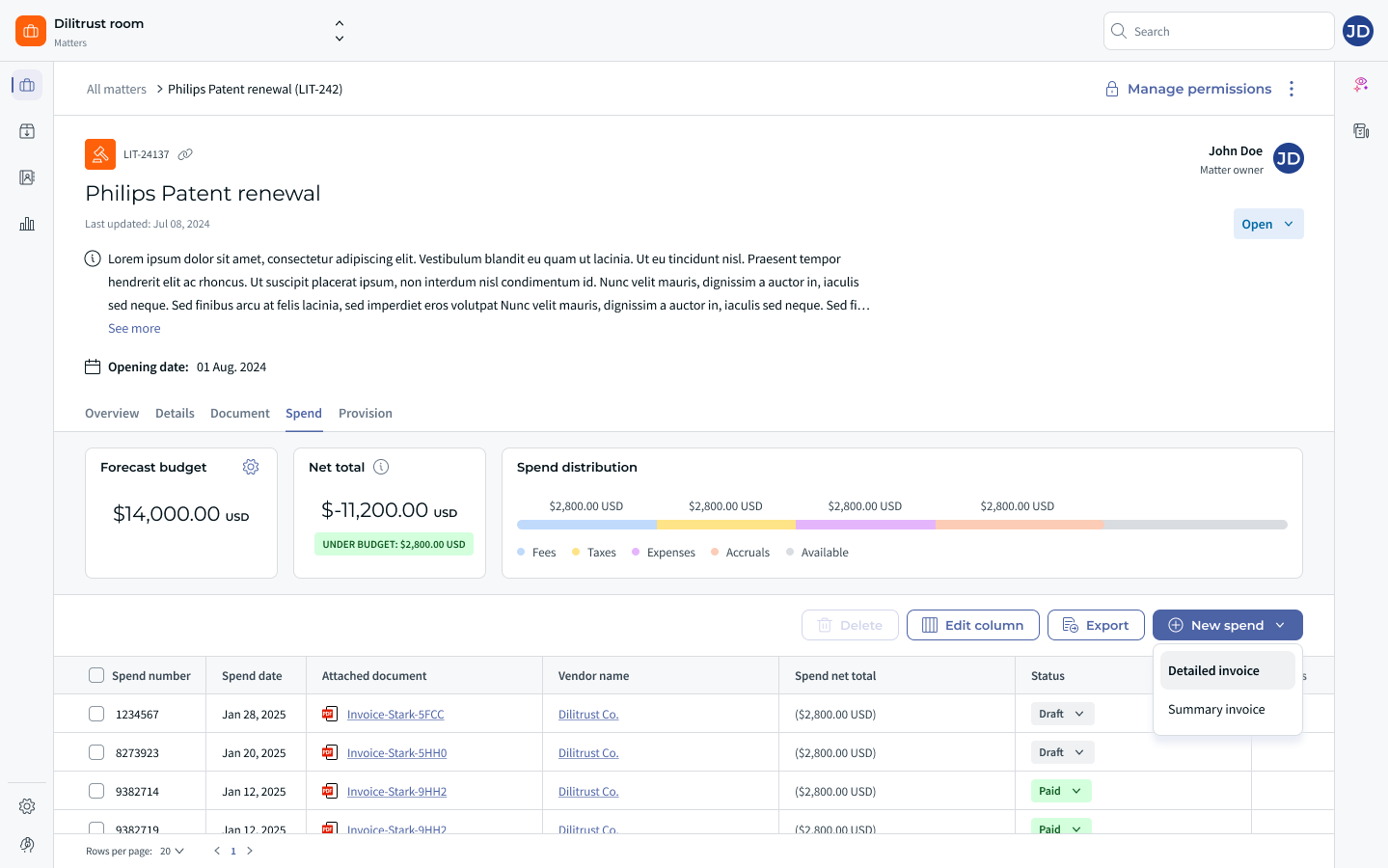
✍ Step 1 — Open the invoice window and import the original file
- Open the matter and go to its Spend list.
- Start a new spend.
- Choose Detailed invoice. The “Import an invoice file (optional)” window opens. It explains that the document is attached for reference, and that “Your original file is always kept untouched”.
- Choose one option:
- Drag & drop or browse: attach the invoice you received.
- Skip: record the invoice without attaching a document.
- Cancel: close the window and come back later.
If you imported a file, it appears in a preview pane on the left of the invoice window. You can move between its pages (for example “Page 1 of 2”). This way, you read the original document while you type.
Prefer to let Lini do the typing?
You can create a detailed invoice with AI autofill. Here is how it works:
- Give your invoice document to Lini.
- Lini detects that it is a detailed invoice.
- Lini extracts the line data and fills in this form. The document is shown on the left.
Good to know:
- Lini matches timekeepers with your timekeeper records.
- The rate used is the one written on the invoice.
- If a timekeeper is not found in your records, the invoice cannot be submitted.
For the full AI autofill flow, see Matters – Create a Summary Invoice with AI Autofill (Lini).
⚖️ Step 2 — Fill in the invoice header
In the Invoice header section, enter the invoice’s identification details. Required fields are marked with an asterisk.
- Vendor: the firm or supplier that sent the invoice. The list shows the vendors linked to this matter.
- Invoice date: the accounting date of the invoice, in DD-MM-YYYY format.
- Invoice number: the reference printed on the invoice (for example INV-2026-001). It lets you match the invoice with the law firm’s billing system.
- Invoice start date and Invoice end date: the period this invoice covers. The start date must be the same as or earlier than the end date. Otherwise, an error appears on the end date.
- Invoice description: a short description, up to 255 characters. It is not sent to the vendor.
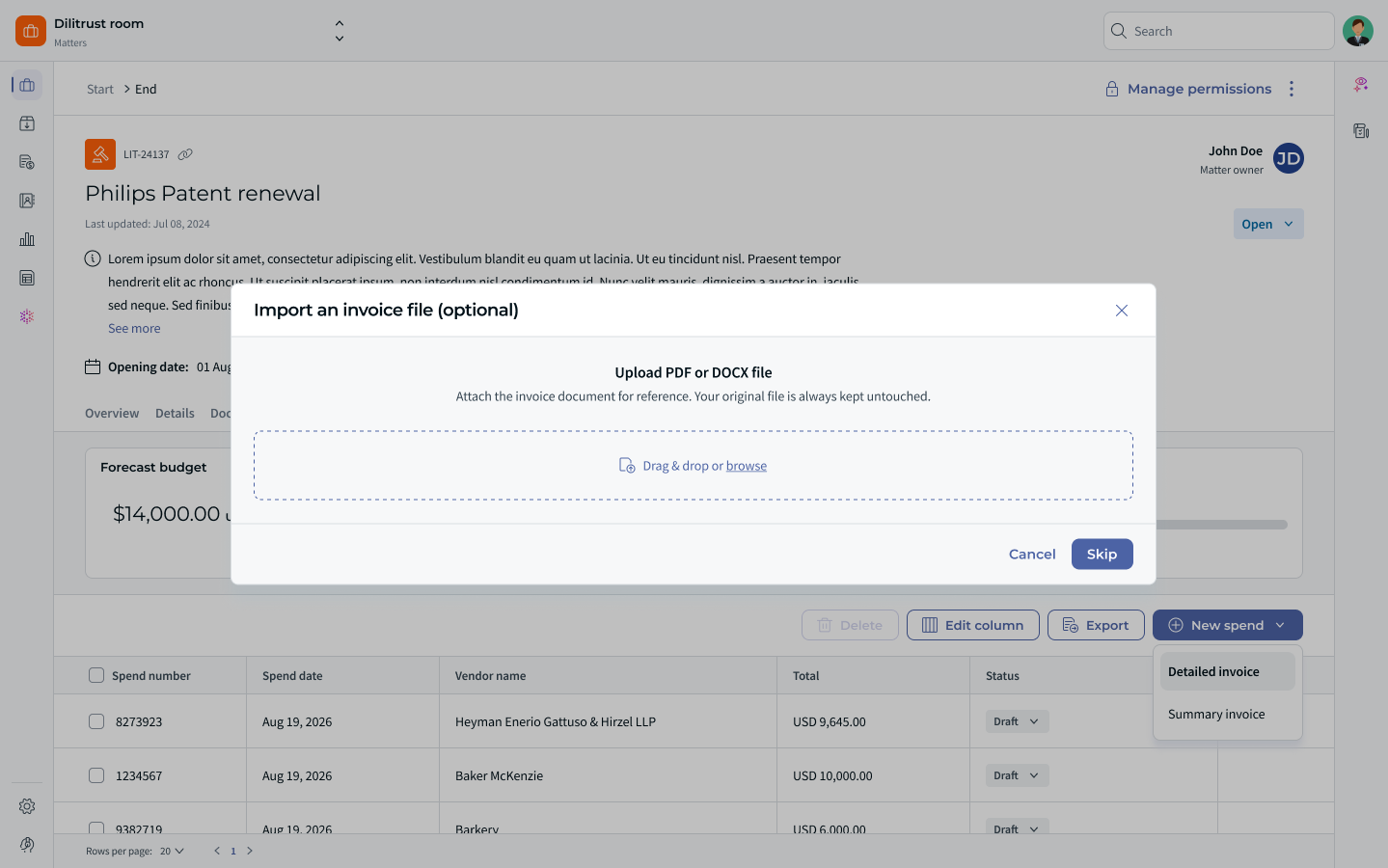
☝ Step 3 — Add your fee lines
Open the Fees section. Its heading shows how many lines you have recorded, for example “Fees (7 lines)”.
- Click Add fee line. A new line appears at the bottom of the list. You can edit it right away.
- Fill in the line:
- Date: when the work was done.
- Timekeeper: the person who did the work. It shows the first name, last name and the firm’s own reference, for example John Smith (JS). If there is no timekeeper, the list shows “No timekeepers available for this vendor”.
- Hours: positive numbers only, up to two decimal places.
- Rate: positive numbers only, up to two decimal places. Type it from the paper invoice. It is never filled in automatically when you pick a timekeeper.
- Discount: a discount on this line, as shown on the invoice. No discount? Leave it empty. It then counts as zero.
- Amount: calculated for you. You can’t edit it. Formula: Hours × Rate − Discount.
- Task code (optional): pick a standard UTBMS task code. It is shown as code and description, for example L310 — Written Discovery.
- Activity code (optional): pick one of the ten standard UTBMS activity codes (A101 to A110). It is shown as code and description.
- Description: free text. Usually, the description printed on the invoice.
- Repeat for each billed line on the invoice.
All UTBMS codes are optional. The system never forces you to enter them. You decide which ones your team wants to track.
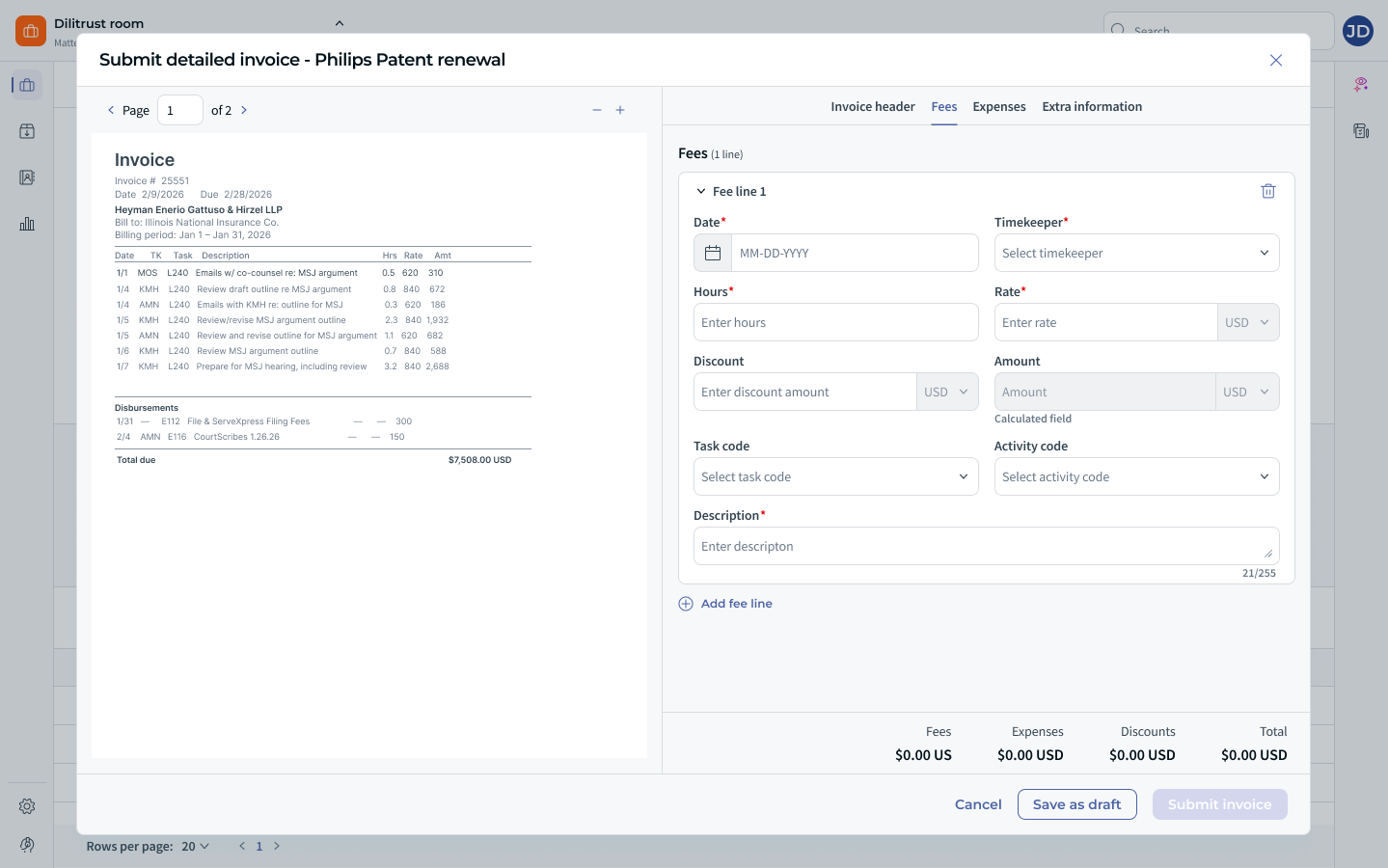
⏩ Step 4 — Add your expense lines
Open the Expenses section. Its heading also shows how many lines you have recorded.
- Click Add expense line. A new line is added.
- Fill in the line:
- Date: when the expense was incurred.
- Timekeeper: the person the expense relates to.
- Unit and Unit cost: the quantity billed and the price per unit.
- Discount: a discount the vendor gave on this line.
- Amount: calculated for you. Formula: quantity × unit cost − discount.
- Expense code (optional): pick a UTBMS expense code (E101 to E121). It is shown as code and description, for example E109 — Local Travel.
- Description: free text, up to 255 characters.
Expense codes are a separate list:
- You can’t use them on fee lines.
- You can’t use task or activity codes on expense lines.
Recording a flat fee
Set the quantity to 1. Enter the flat price as the Unit cost.
Example: court fees billed at 500 USD → quantity 1, unit cost 500 USD.
Removing a line
- Click the bin icon on the line.
- A message asks: “Are you sure you want to delete this spend line?”
- Click Yes to delete it, or No to keep it.
The totals update right away.
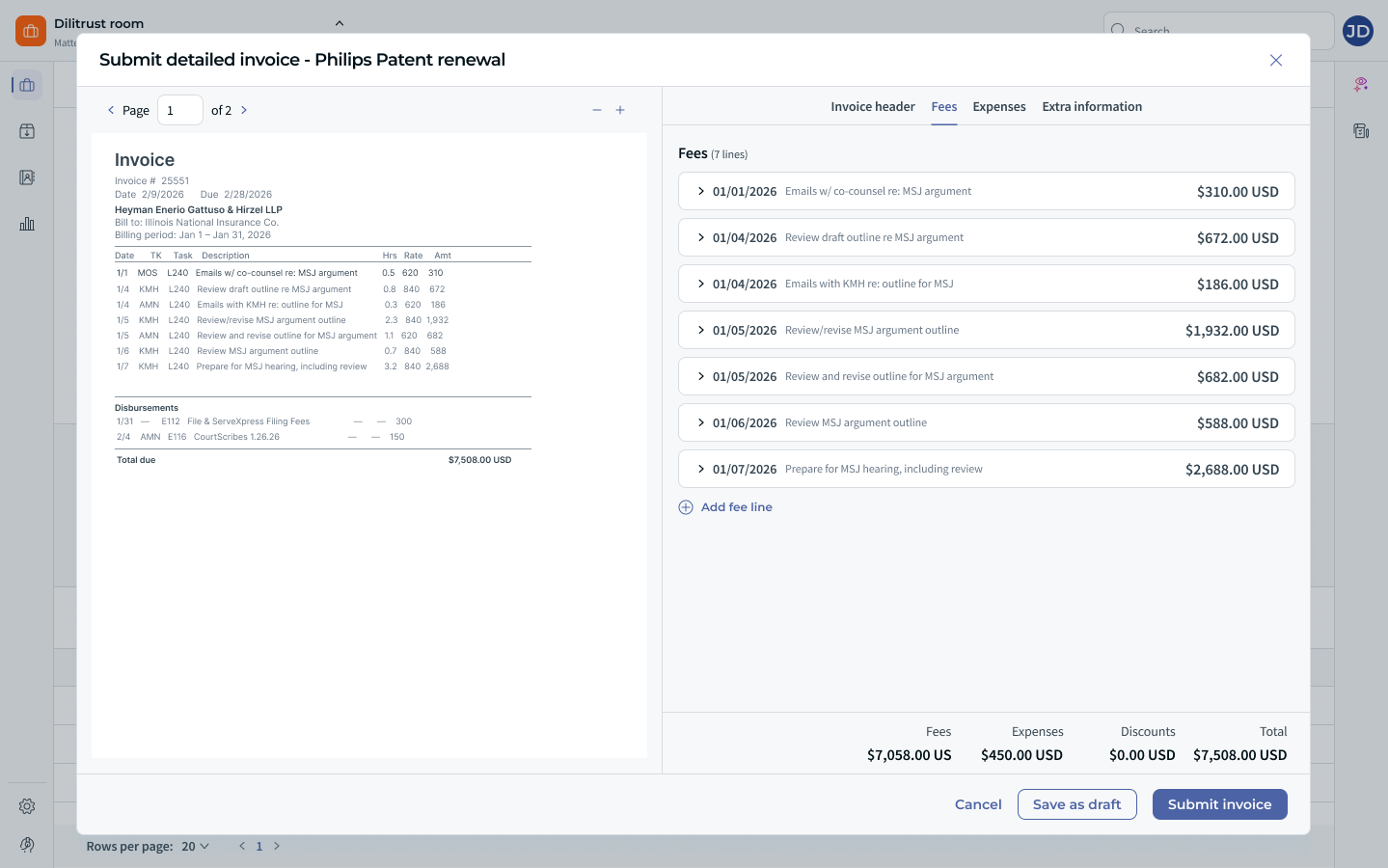
⌛ Totals, custom fields and saving
Running totals
- A footer stays visible at the bottom of the window, even when you scroll.
- It shows four values: Fees, Expenses, Discounts and the invoice Total.
- They update in real time when you add, edit or delete lines.
Custom fields
- Your administrator may have set up custom spend fields.
- They appear on the detailed invoice exactly as on the summary invoice. They work the same way as everywhere else in the platform.
- If your administrator made a custom field mandatory, you must fill it in before you can save.
At least one line is required
You can’t save an invoice with no fee line and no expense line. If you try, this message appears: “Please add at least one invoice line before saving.”
Saving and submitting
- Save as draft: keeps your work so you can come back later. The original file and the change history are kept.
- Submit invoice: use it when the invoice is complete. A message confirms: “The invoice was successfully added to your spends.” The window closes and the invoice appears in the Spend list.
Closing before you submit
If you close the window with unsaved changes, the message “Leave without submitting?” warns you that your corrections are not saved yet. You can choose:
- Keep working,
- Save as draft,
- Discard.
Editing an invoice later
If you edit an invoice that is no longer in Draft, a message warns you: “Editing this invoice will reset its status to Draft.” You confirm before you continue.
✨ Exporting and customizing your spend view
Export
You export detailed invoices from the Spend table, like summary invoices. The export has one row per invoice, not one row per line.
The export contains:
- spend number,
- matter name and matter number,
- invoice type, invoice number and invoice date,
- billing period start and end,
- currency,
- total fees, total expenses and total amount,
- status,
- one column for each custom spend field.
Line details are not exported. For example: each timekeeper, task code or number of hours.
New spend columns
The Spend table has new columns: Timekeeper, Task code, Activity code and Expense code. They are empty for spend records created before this feature existed.
Edit columns
- The Edit columns button in the Spend table lets you show, hide and reorder columns.
- It is available whether E-billing is enabled or not.
- The Spend Number column always stays first. You can’t hide or move it.
- The action column is not part of column management.
Date format (administrators)
An administrator can choose how dates are displayed for the whole organization. Go to General Settings > Data Customization > Date format management.
- The format applies to every user: in lists, in form date fields (including the invoice dates above) and in exports.
- It only changes how dates look. The dates themselves never change.
- Exports created before the change are not affected.
⭕ Tips and best practices
- Import the original invoice first. You can copy the figures from the preview pane without switching windows. The document also stays attached to the spend record, for audits.
- Use task and activity codes the same way across matters and firms. The codes are useful because they let you compare spend by phase and by activity later.
- Copy the description from the paper invoice into the Description field. A reviewer can then understand the line without opening the original document.
- Enter fee lines one timekeeper at a time. This makes costs per person easier to read.
- Before you submit, compare the totals in the footer with the total printed on the invoice.
- For long invoices, use Save as draft. You can come back later without losing the file or your changes.
❗ Limitations and things to know
- Detailed invoices are only available if your organization has E-billing enabled. For everyone else, summary invoices are completely unchanged.
- When you record an invoice manually, you type the lines by hand.
- Whether you enter lines manually or with AI autofill, the rate is never filled in from a reference list. It is always the rate written on the invoice.
- Only the standard UTBMS code lists are available, and only their common codes.
- UTBMS codes are only labels. They never affect a rate, an amount or a total.
- The invoice description is internal. It is not sent to the vendor.
- The export works at invoice level only. Line details are not exported.
- “Legal Service Provider” is now called Vendor across the platform. This applies to all clients, including those who don’t use E-billing.
❓ Frequently asked questions
Do I have to fill in task and activity codes?
No. All UTBMS codes are optional, on every type of line. The system never forces you to enter them. Record only the codes your team wants to track.
My invoice has no UTBMS codes at all. Can I still use a detailed invoice?
Yes. Leave the code fields empty. Record the date, timekeeper, hours, rate and description. Many smaller firms don’t use UTBMS codes.
Do I have to attach the original invoice file?
No. Importing a file is optional. Click Skip to record the invoice without a document.
If you do attach one, your original file is kept untouched.
Is a task code the same as a Task in Matters?
No.
- A task code is a billing code. It describes the phase of legal work on an invoice line.
- A Task in Matters is a to-do item on your matter.
Why isn’t the rate filled in when I select a timekeeper?
Because the rate you record must be the rate actually charged on the invoice. You always type it in yourself. This way, what you save matches the document.
How do I record an expense billed as a flat fee?
Set the quantity to 1. Enter the flat price as the unit cost.
I have to stop halfway through a long invoice. Will I lose my work?
No. Click Save as draft. You can also choose Save as draft in the “Leave without submitting?” message.
The original file and the change history are kept.
Will my existing summary invoices change?
No. Summary invoices work exactly as before. Existing spend records are not changed.
Why can’t I see the Detailed invoice option?
Detailed invoices depend on the E-billing setting, which is managed for the whole organization. Don’t see the option? Ask your administrator whether E-billing is enabled for your organization.
Was this article helpful?
That’s Great!
Thank you for your feedback
Sorry! We couldn't be helpful
Thank you for your feedback
Feedback sent
We appreciate your effort and will try to fix the article