DiliTrust Matter Management has been updated to make the matter creation flow and matter detail pages more accessible. These improvements ensure that all users — including those who rely on assistive technologies such as screen readers or keyboard-only navigation — can create and manage matters comfortably and efficiently.
✅ Introduction
Accessibility is a core principle of good software design. DiliTrust is committed to ensuring that its platform is usable by everyone, regardless of ability or the tools they use to interact with it. This update focuses on the matter creation flow and the matter detail page — two of the most frequently used workflows in Matter Management — to ensure they meet modern accessibility standards.
✋ Prerequisites / Getting Started
- No specific setup is required. Accessibility improvements are automatically available to all users.
- If you use assistive technologies (screen readers, keyboard navigation, voice control), these improvements are designed to work with your existing tools.
⭐ Step-by-Step Guide
Opening the Create a matter window
- From the matters list, press Tab until you reach the Create a matter button, then press Enter or Space to activate it.
- When the window opens, keyboard focus moves directly into it — either to the window title or to the Search a matter type field — so you always know where you are.
- While the window is open, focus stays inside it: Tab and Shift + Tab cycle through the elements of the window instead of moving to the page behind it.
- You can close the window at any time with the Esc key, or by reaching the close (X) button and pressing Enter or Space. Focus then returns to the Create a matter button you started from.
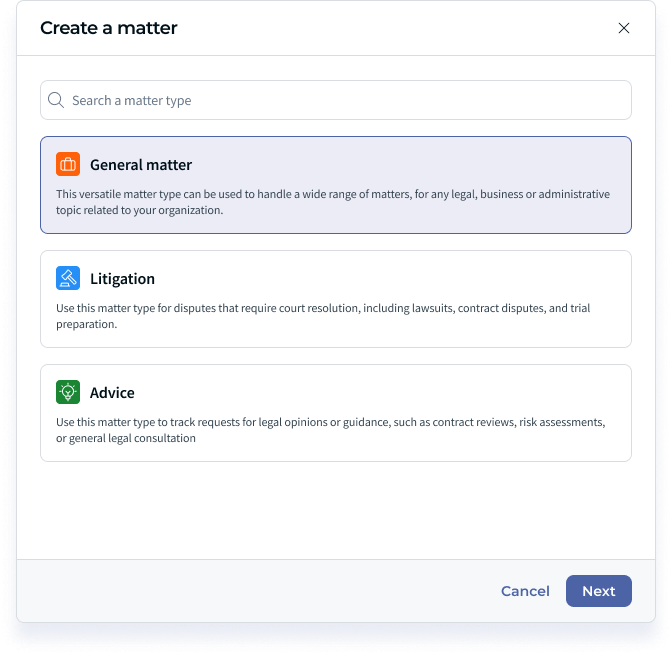
Choosing a matter type
- Type in the Search a matter type field to filter the available matter types. Focus stays in the field while you type and the results update without taking the focus away from you.
- Press Tab to move between the matter type cards and Enter or Space to select one. The selected card is clearly indicated, and the card you are focused on is visually distinct from the card you have selected.
- The Next button stays disabled until a matter type is selected, so you always know what is expected before moving on.
- Cancel closes the window without creating a matter and returns focus to the button that opened it.
Filling in the matter information
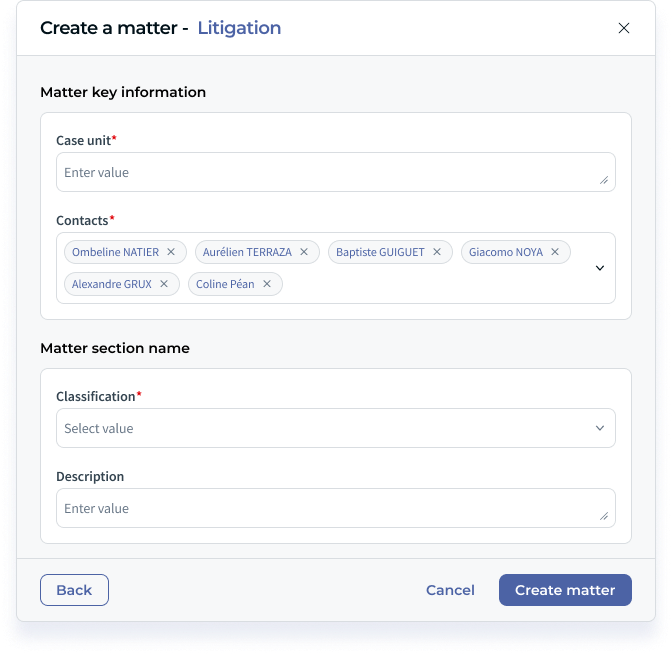
- The window title reflects the matter type you selected, for example Create a matter - Litigation.
- Fields are displayed one per line, which makes the form easier to follow both visually and with a screen reader.
- Fill in the fields of each step (for example Name, Date opened and Description). Required fields are marked with an asterisk.
- Every field takes a visible focus state when you reach it with the keyboard, including the cascader field used for hierarchical selections.
- Press Next to move to the following step. The new step title — for example Matter key information — is announced by screen readers, and step titles are kept consistent so you can follow your progression through the flow.
- Use Back to return to the previous step, and Create matter on the last step to finish.
Using a Screen Reader
- All form fields, buttons, and interactive elements in the matter creation flow now include descriptive labels that are readable by screen readers.
- Error messages and validation feedback are announced by the screen reader so you are immediately informed of any issues.
- Section headings and landmark regions allow screen reader users to navigate the page structure efficiently.
- Decorative icons are ignored by screen readers, so you only hear the information that matters.
☝ Working with the matter page
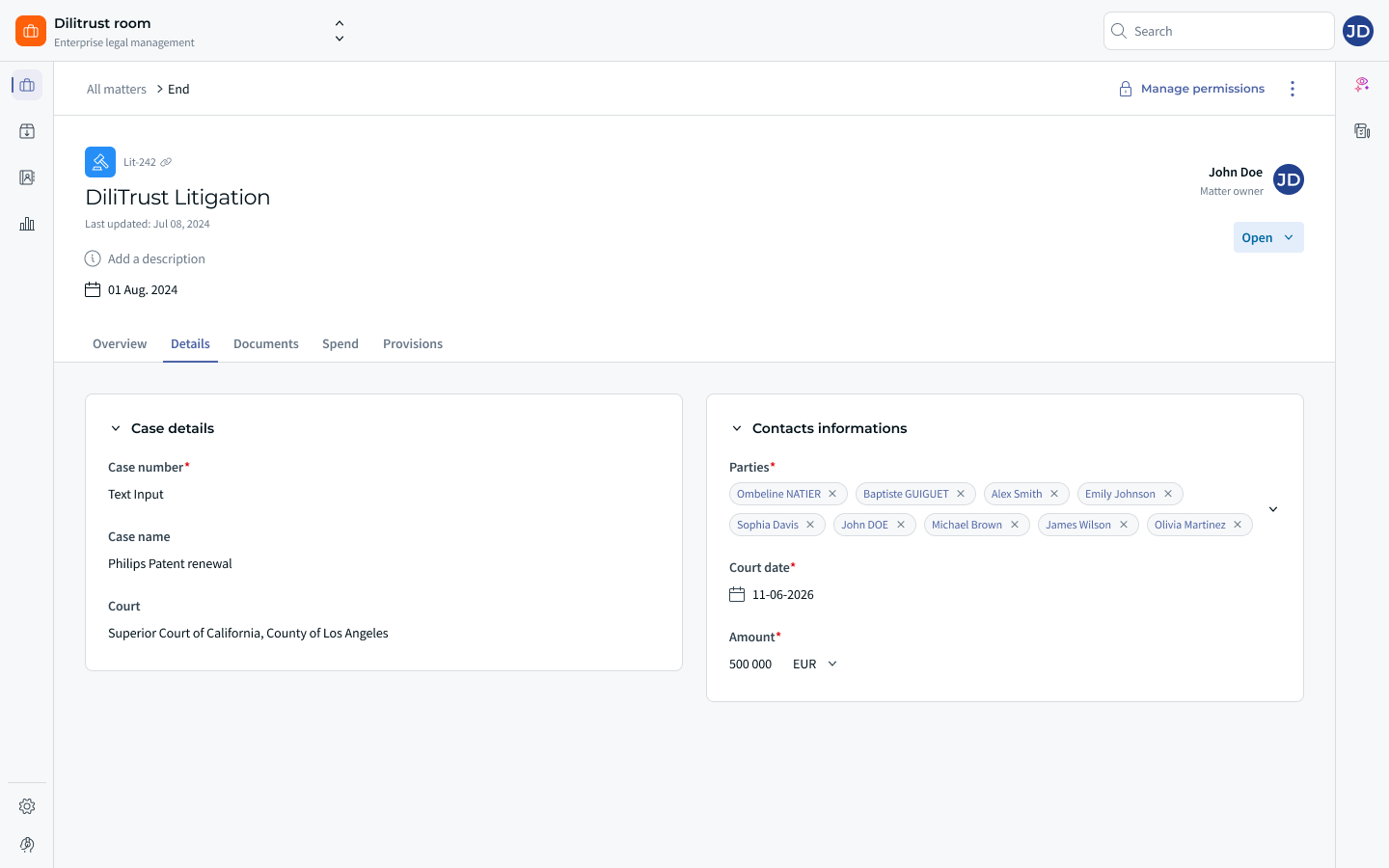
- When a matter page opens, the main page title (the matter name) takes the focus, so screen readers announce the page you have just opened and keyboard users know where they are.
- The matter tabs (for example Overview, Details, Documents, Spend and Provisions) follow standard tab behaviour: use the left and right arrow keys to move from one tab to another, then press Tab to enter the content of the selected tab. Only the active tab is part of the tab order.
- The Status field is a real select control: screen readers announce its label and current value (for example "Status, Open, combo box"), and it can be operated with the keyboard.
- Field labels are displayed above the field they describe, and detail fields can show a hint icon that gives you additional guidance about what is expected.
✨ Tips & Best Practices
- Use the Tab key consistently: The keyboard navigation order in the matter creation flow has been designed to follow a logical, predictable sequence.
- Filter instead of scrolling: when you know the matter type you need, type its name in the Search a matter type field rather than moving through every card.
- Remember Esc: pressing Esc closes the Create a matter window and brings you back to where you were.
- Check for error announcements: If a required field is missing or a value is invalid, the error is now clearly communicated both visually and via screen reader.
- Combine with your preferred assistive tool: These improvements are compatible with major screen readers (NVDA, JAWS, VoiceOver) and keyboard-only navigation.
❌ Limitations & Known Constraints
- Accessibility improvements in this update focus on the matter creation flow and matter detail page. Other areas of Matter Management are being addressed in subsequent accessibility sprints.
- Some third-party browser extensions or custom accessibility configurations may interact differently with the updated components — contact DiliTrust support if you experience unexpected behavior.
❓ FAQ
What accessibility standards does DiliTrust follow?
DiliTrust follows the WCAG (Web Content Accessibility Guidelines) standards. This update targets WCAG 2.1 Level AA compliance for the matter creation workflow.
Why is the Next button greyed out?
The Next button stays disabled until you have selected a matter type. Select a card with Enter or Space and the button becomes available.
Can I close the Create a matter window without a mouse?
Yes. Press Esc, or reach the close (X) button with Tab and press Enter or Space. In both cases, focus returns to the Create a matter button.
How do I move between the tabs of a matter with the keyboard?
Use the left and right arrow keys to move between tabs, then press Tab to enter the content of the tab you selected.
Are these improvements available on mobile devices?
Accessibility improvements apply to the web application. For mobile-specific accessibility, check your device's built-in accessibility tools in combination with the DiliTrust web app.
Will more areas of the platform be made accessible?
Yes. DiliTrust has an ongoing accessibility program. Improvements are being rolled out progressively across all modules and workflows.
If I press Tab while the Create a Matter window is open, can the focus move to the page behind it?
No. Keyboard focus is kept inside the Create a matter window and cycles through the interactive elements of that window until you close it or complete the creation.
I use a screen reader and something is still not working correctly. What should I do?
Please contact DiliTrust support with details of the issue, your screen reader version, and your browser. We are committed to resolving accessibility issues as quickly as possible.
Was this article helpful?
That’s Great!
Thank you for your feedback
Sorry! We couldn't be helpful
Thank you for your feedback
Feedback sent
We appreciate your effort and will try to fix the article